
Firmware Update
The radio comes preloaded with firmware V1.0.0 by default, which can be checked under the Firmware section in the menu. The ELRS firmware version can also be checked in the ELRS menu.
HDZero Radio Update
Before updating, you must first install the STM32 driver and CH340 driver on your computer, disconnect any other STM32 devices, and ensure that Betaflight Configurator is closed.Only Windows®️ Operating System is supported currently.
- Turn on the radio, connect it to your computer using a USB cable
- Select the "Serial(VCP)" in the USB Device option
- Download the HDZero Programmer.zip from the HDZero Download page
- Use "Load Online Firmware" to fetch firmware from GitHub, then select the desired version; or
- Use "Load Lcal Fimware" to specify a local hdzero_radio.bin
- Click "Flash Radio" to start the updating process
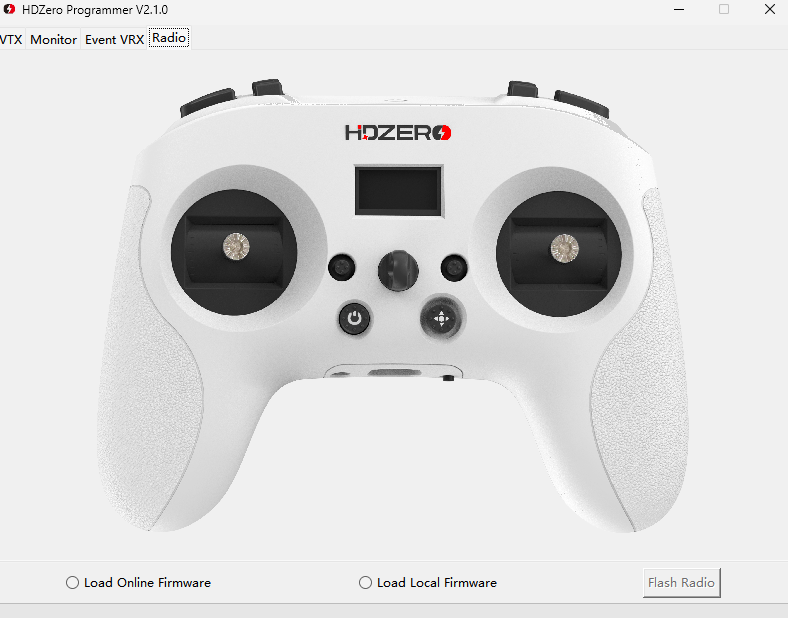
Note: Updating the HDZero Radio firmware will automatically update the Radio System, ELRS TX, and ELRS Backpack simultaneously. For specific ELRS TX and Backpack version details, please refer to the latest Release Notes.
ELRS Transmitter Update
There are multiple methods for updating ELRS, here we only cover the update via the ExpressLRS web UI and UART flashing method. Additionally, before updating the program using the UART method, you need to install the CH340 driver on your computer. Note: if a PC isn't available, you may try updating via WiFi. Consult ELRS documentation for steps.
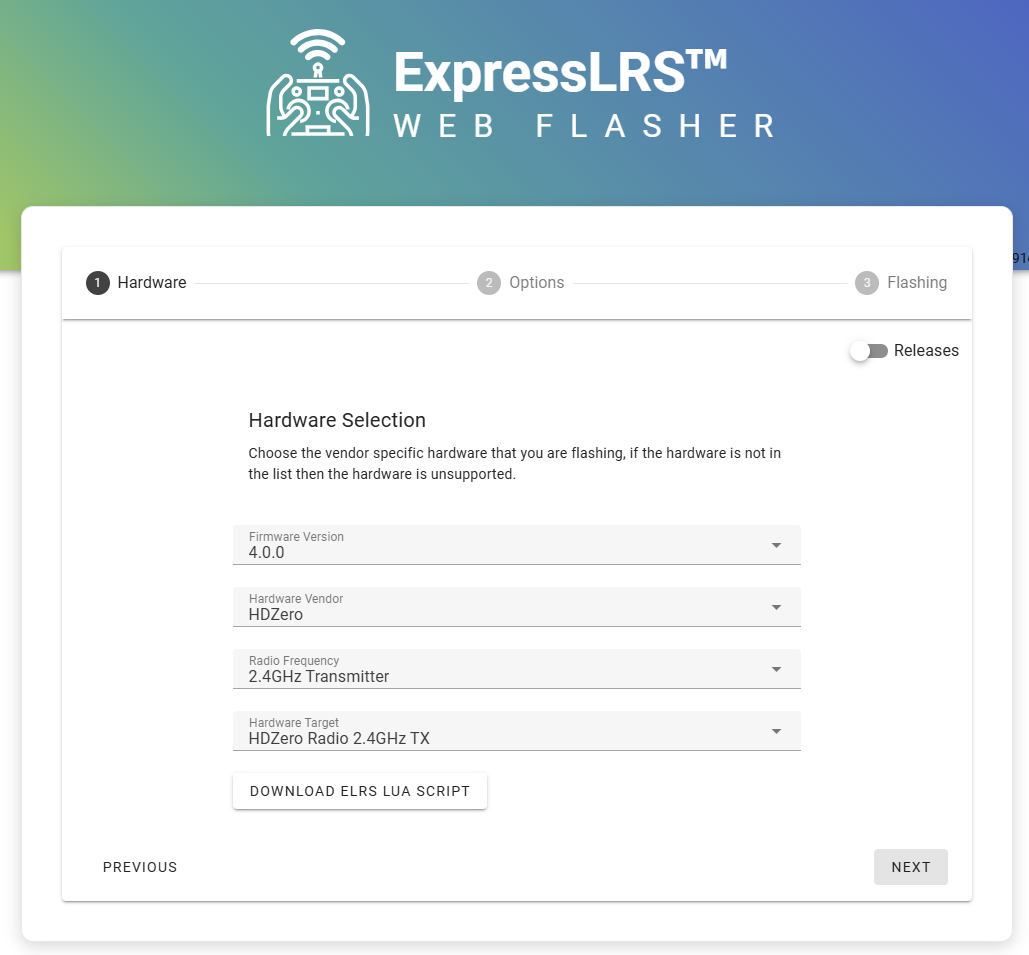
Log in to the ELRS Web Flasher at the URL below:
Select the needed "Firmware Version", then choose "HDZero - 2.4GHz Transmitter - HDZero Radio 2.4GHz TX", then "NEXT"
Select your preferred transmitter settings, and choose "Serial UART" as the flashing method, then "NEXT"
Turn on the Radio, connect the radio and computer by the USB cable
Select the serial (VCP) in the USB Device option
Navigate to the "Firmware" menu, select "PROG ELRS TX", and the radio will vibrate once
"CONNECT" in the ELRS Web Flasher, select the corresponding USB serial, then start "FLASH"
Wait for the firmware flashing to complete, then Done
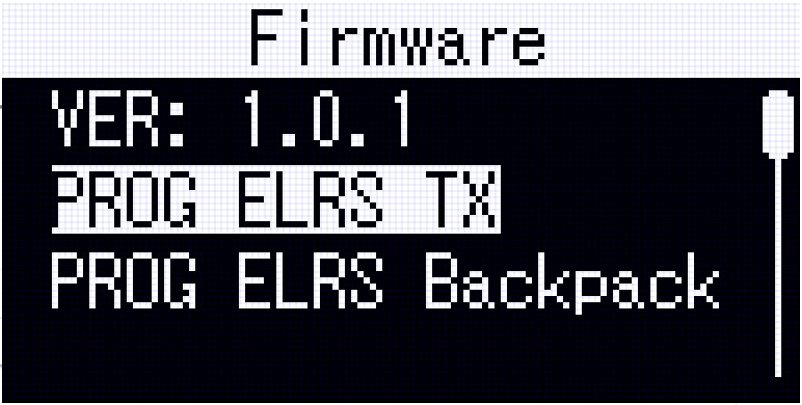
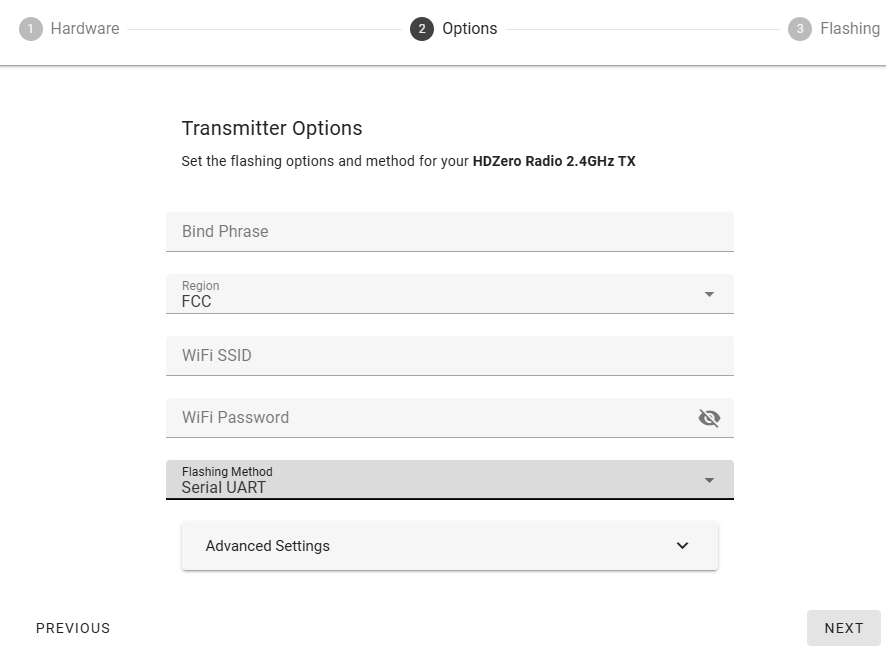
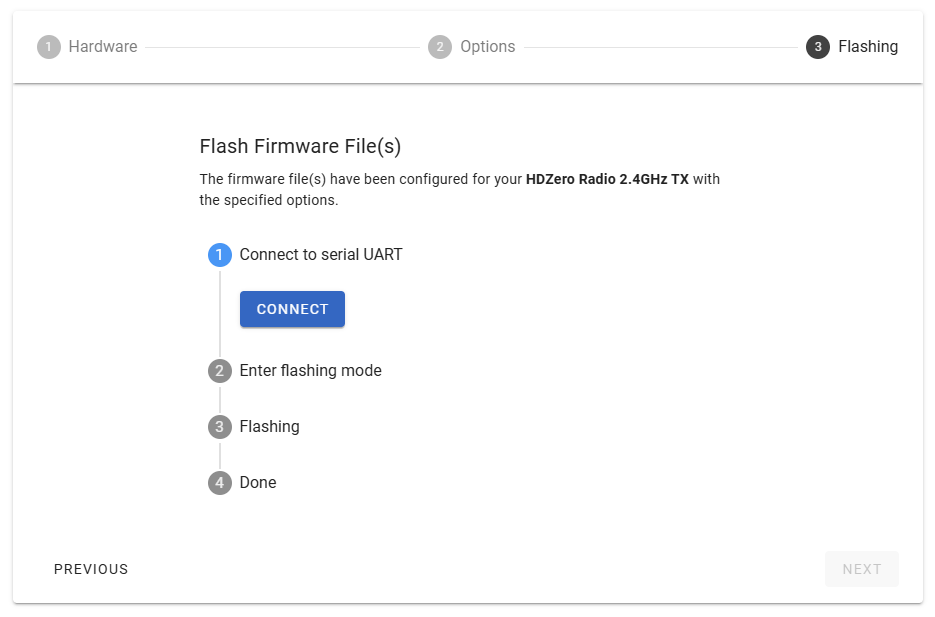
Note: The firmware update method for ELRS backpack is the same as described above.
 Ligen
Ligen